
How to Mirror Android to PC/Mac Using AnyDroidCast
TunesBro AnyDroidCast is a powerful Android mirroring software designed to provide seamless screen mirroring between Android devices and Windows PCs. Whether you want to share your smartphone screen for presentations, enjoy mobile content on a larger screen, or troubleshoot issues directly on your PC, AnyDroidCast allows you to effortlessly mirror your Android phone to your Windows or Mac computer. With its intuitive interface, you can connect devices via USB or Wi-Fi, ensuring compatibility across a range of use cases.
Step 1 Download and Install
First, download the installation file for Windows or Mac. Run the installer and follow the on-screen prompts to complete the installation.
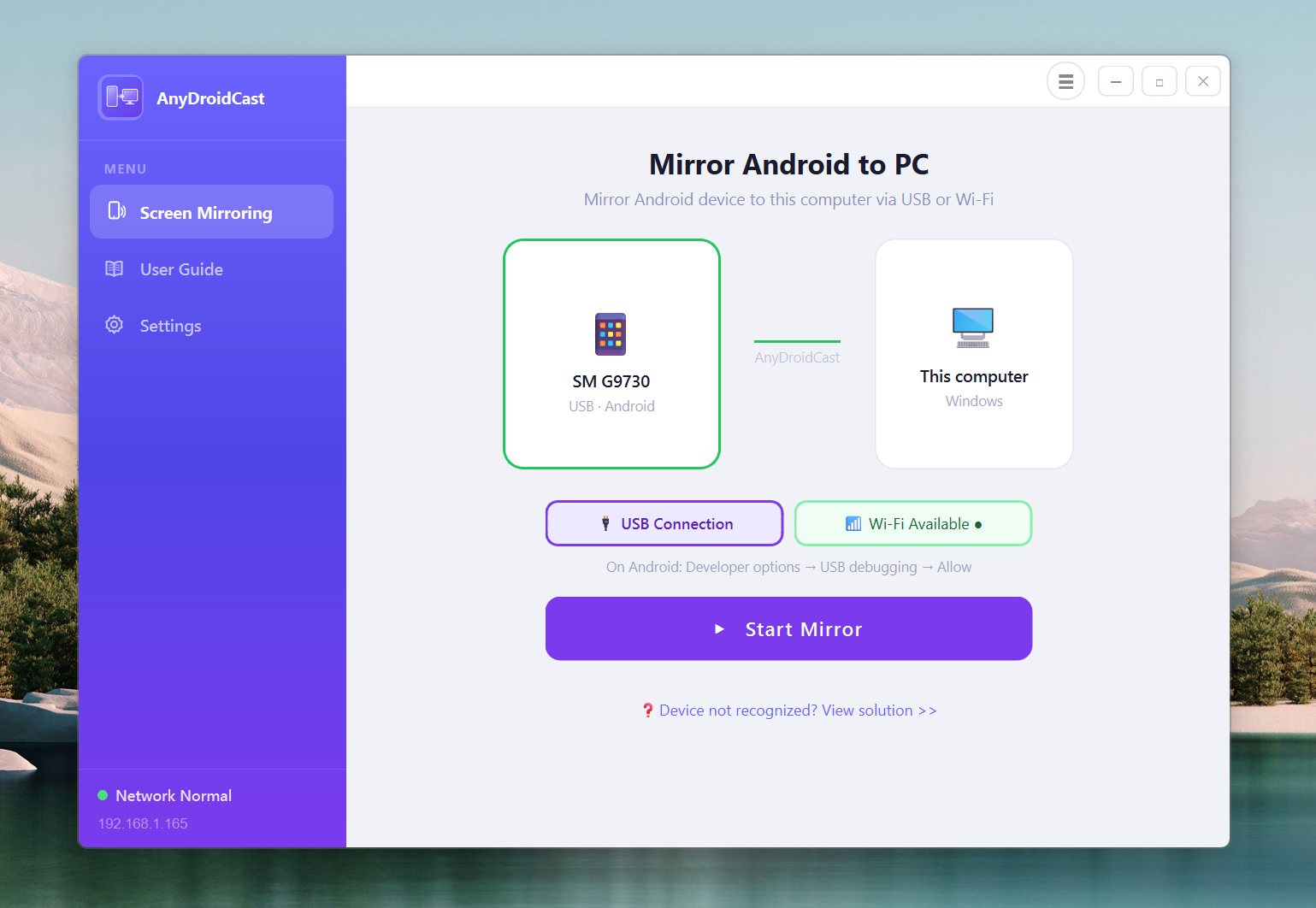
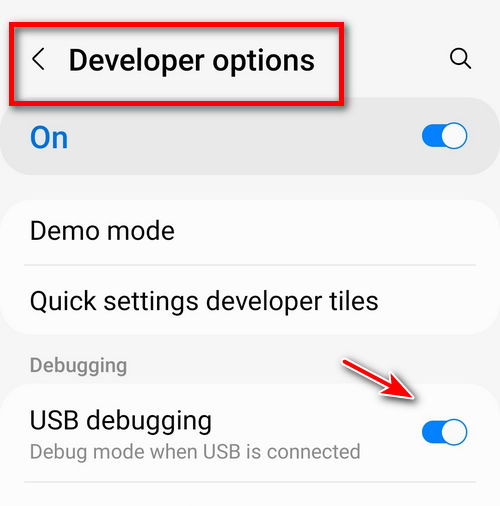
Step 2 Enable USB Debugging and Connect Android to Computer
Get your Android phone connected to PC via USB data cable. The phone should automatically identified by the program but in order to run everything smoothly, first you will need to enable USB debugging mode on your Android phone.
More details: https://www.tunesbro.com/user-guide/turn-on-usb-debugging-android.html
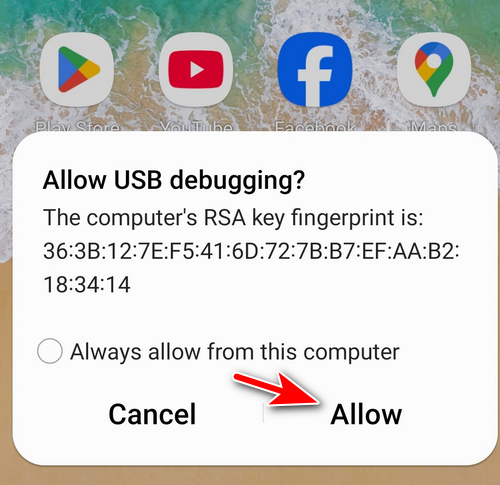
Step 3 Open AnyDroidCast Software and Connect Android to Computer via USB
Launch AnyDroidCast on your Windows PC. Connect your Android device to the computer using a USB cable or connect both devices to the same Wi-Fi network for wireless mirroring. Now, click the via USB menu from the UI and grant the permission to allow USB debugging on the Android phone.
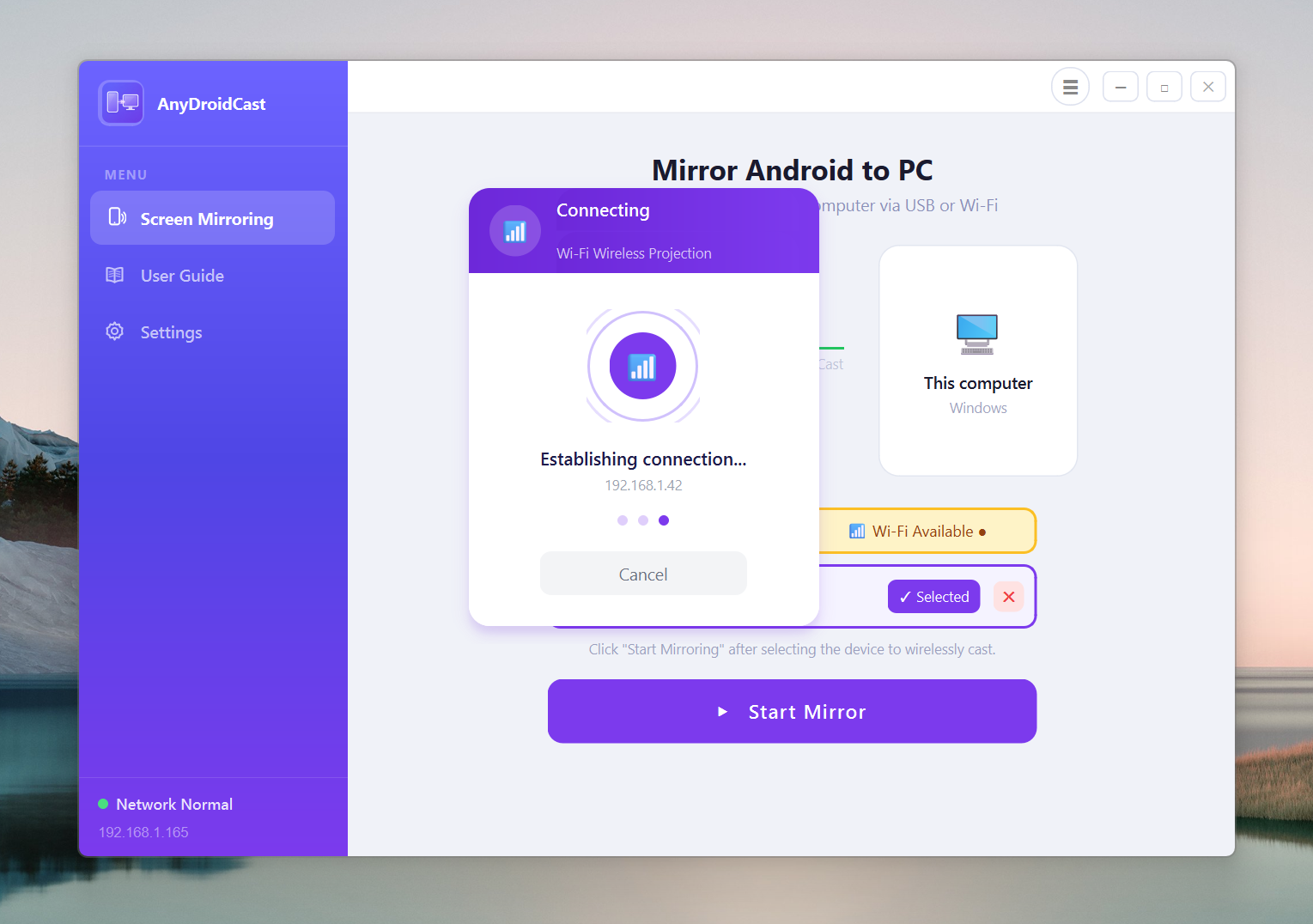
Step 4 Start Mirroring Android Screen to Computer via USB or WiFi
Once your devices are connected, the software will detect your Android phone. Double click on the device name on the software interface to start mirroring your Android device to your PC.
Now, you can see the phone screen is showing up on the computer with a few control options at the right side.
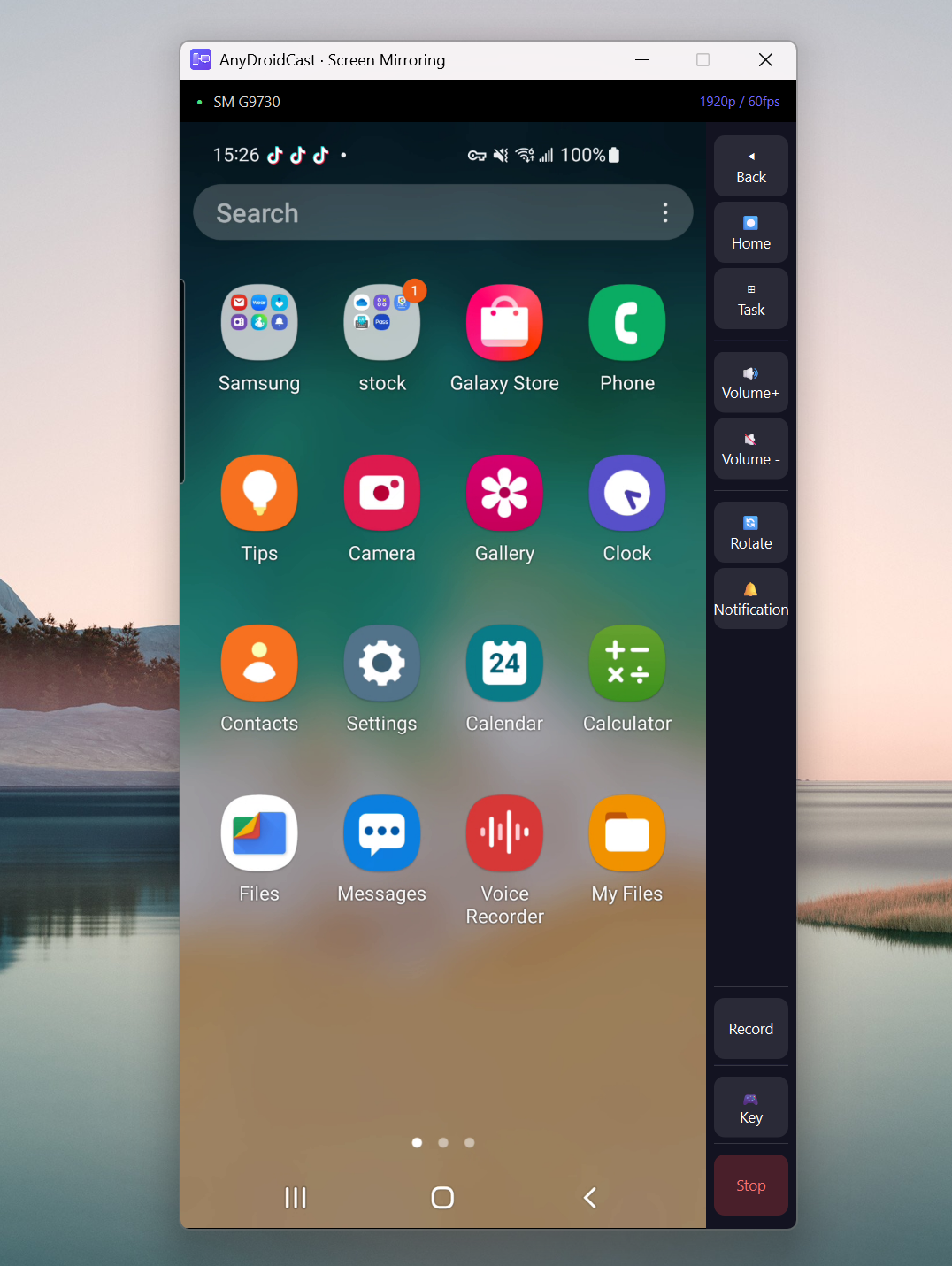
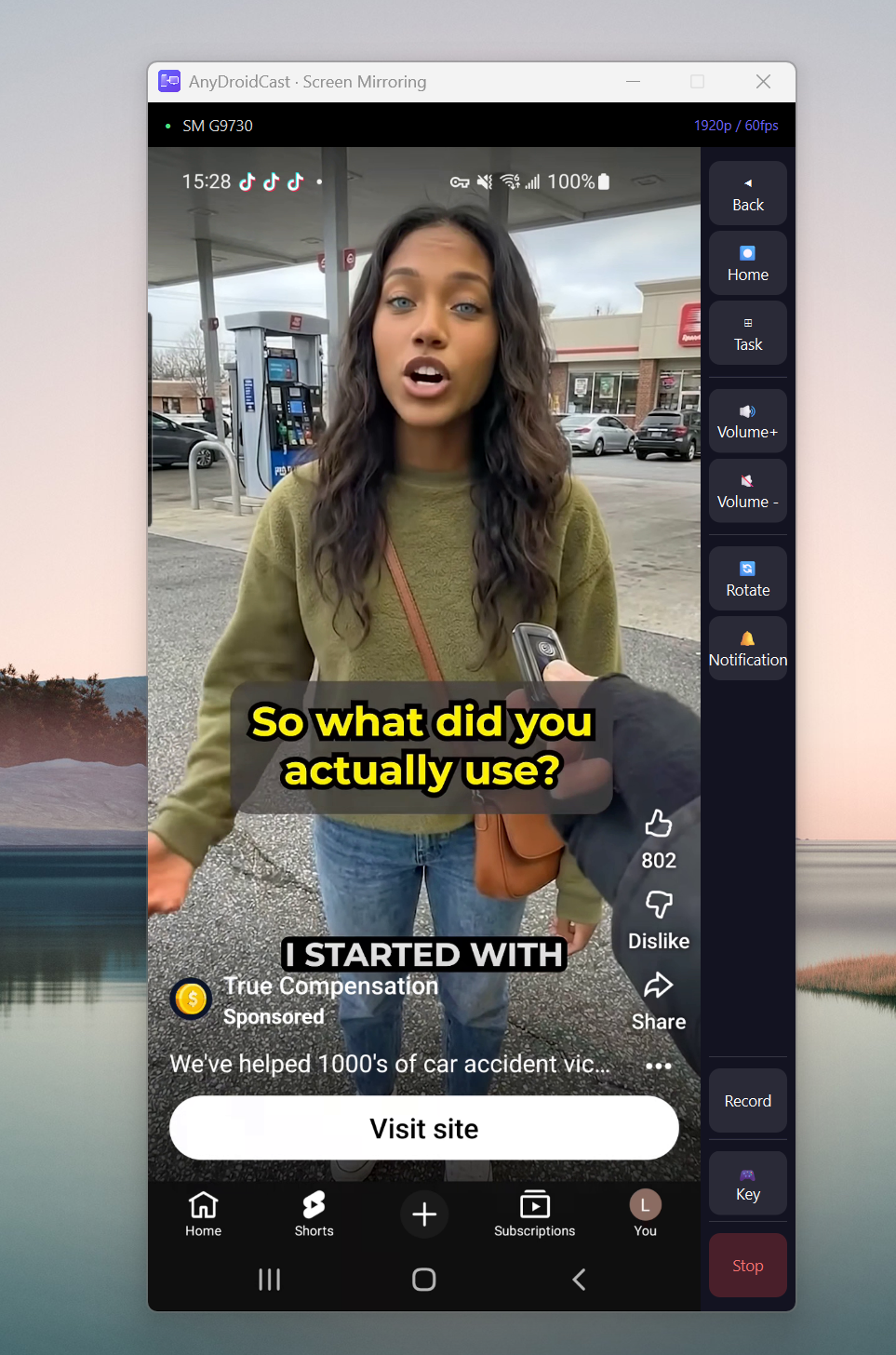
You can now enjoy the live display of your Android screen on your computer.
Summary
TunesBro AnyDroidCast offers a simple yet efficient solution for mirroring your Android device's screen to a Windows PC. Whether using a USB or Wi-Fi connection, the software provides a smooth experience for sharing and controlling your Android phone on your PC. It is ideal for professional presentations, entertainment, or troubleshooting mobile issues. Follow the easy setup and connection steps to start mirroring in just a few clicks!