
Apple's HEIC format for images was indeed a much-needed addition to the iOS 11 feature-set. Along with increasing storage capacity minimums on all new iPhones, Apple brought in this high-performance image compression technology to the iOS platform. Unfortunately, it's not very friendly with other operating systems like Windows and Android since they don't currently offer native support.
This article showcases the best ways to bulk convert HEIC images to JPG on Mac, including the Intel and Apple Silicon Mac.
How to Easily Convert HEIC to JPG on Mac in Bulk
TunesBro HEIC Converter is by far one of the most capable conversion tools for HEIC to JPG and PNG formats on Mac or Windows. It fills the gap left by Apple, and allows you to convert in singles as well as in batches of photos. There's no loss in quality, and you can even control the output quality depending on any storage constraints on the destination drive. There's also an option to retain Exif data if you want.
Top Features of TunesBro HEIC Converter
- Support JPG, PNG, WebP and PDF as output.
- Convert multiple images at one time.
- Retain the best quality of out file.
- Keep EXIF info, such as device, GPS and taken date.
- Work on Windows and Mac computer.
- Superb user friendly interface.
Step 1Download and Install TunesBro HEIC Converter on Mac
First, go to the official website and download the software on a Mac computer. Then follow the instructions to install the program on the computer.
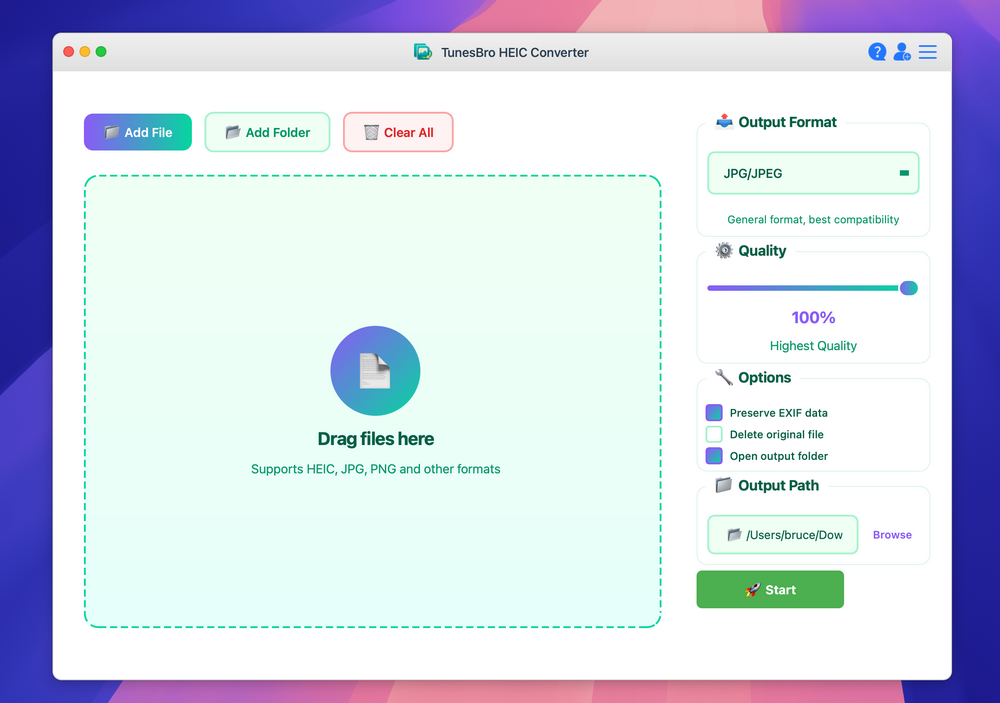
Step 2Add HEIC Files to the Program
Launch the software, and you'll see two options: Add a HEIC file or Add HEIC Folder, which means you can convert multiple HEIC files at one time. Pick the preferred mode for the conversion job.
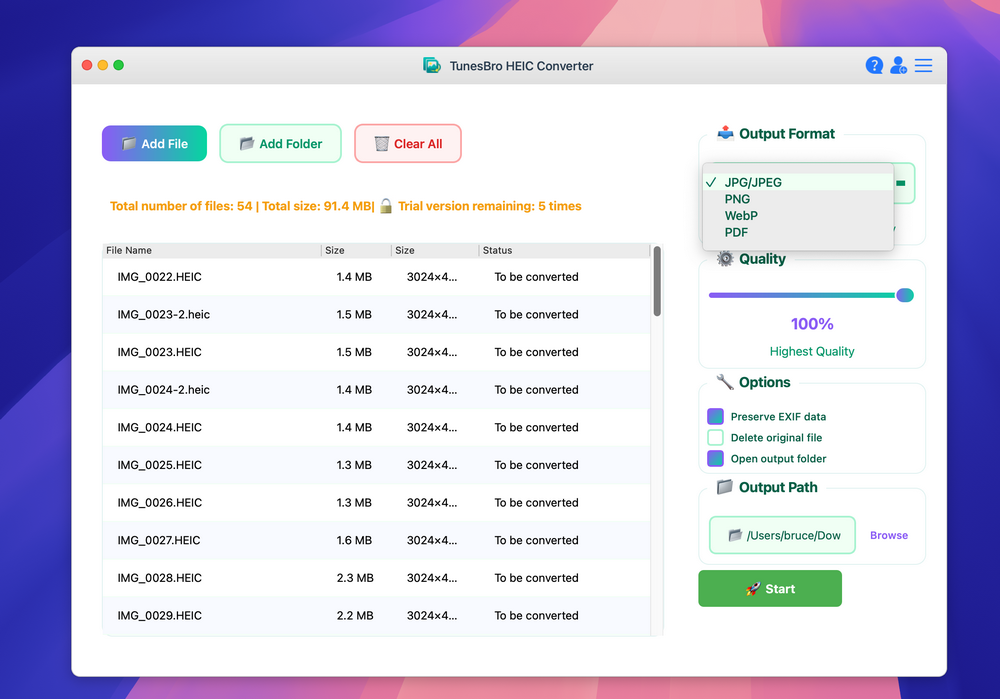
Step 3Adjust Output Settings
In this step you'll need to select the image or images to be converted. This is also where you'll be selecting the output path and image quality, the choice of keeping Exif data and the output format - either JPG, PNG, WebP or PDF. Set the parameters to what you want.
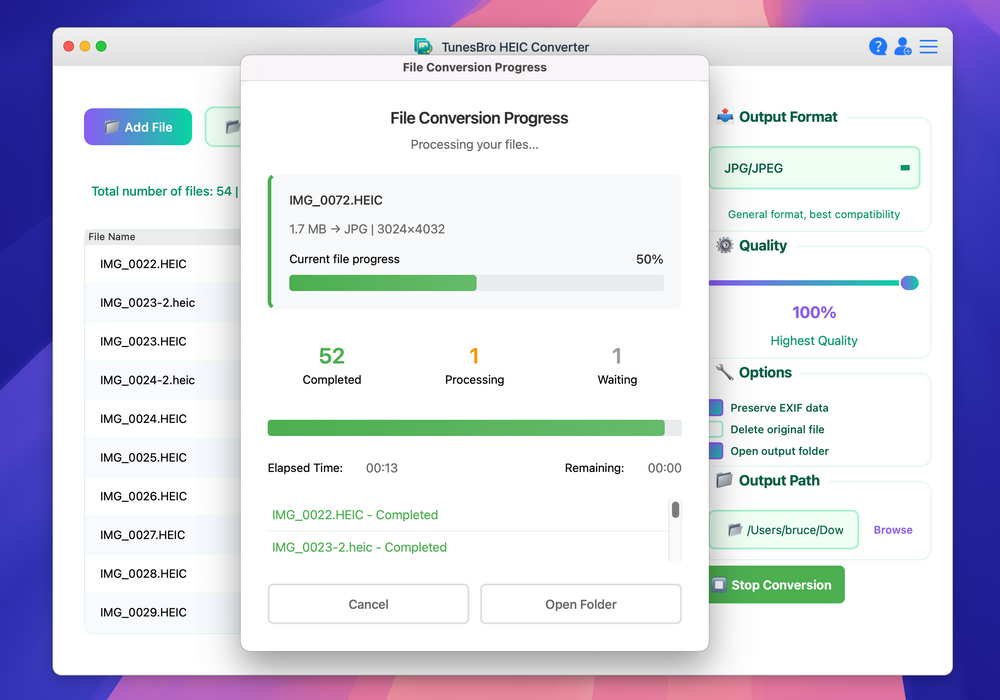
4 Start Converting HEIC to JPG on Mac
Now click on "Start" button and the job will be completed in a short time. With the batch mode you can convert more than 500 images in one go.
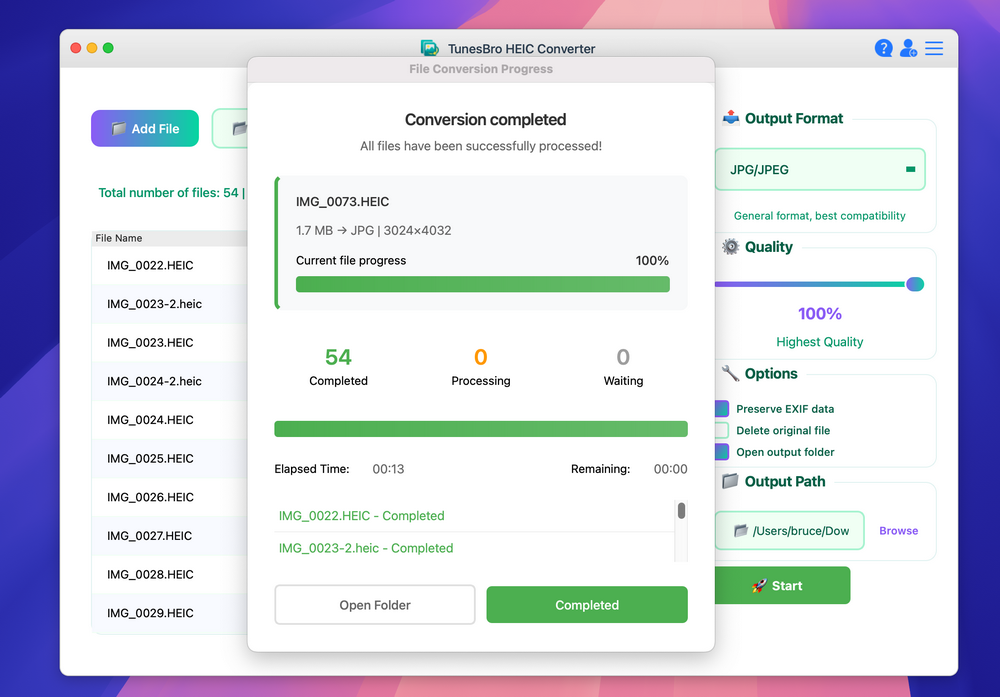
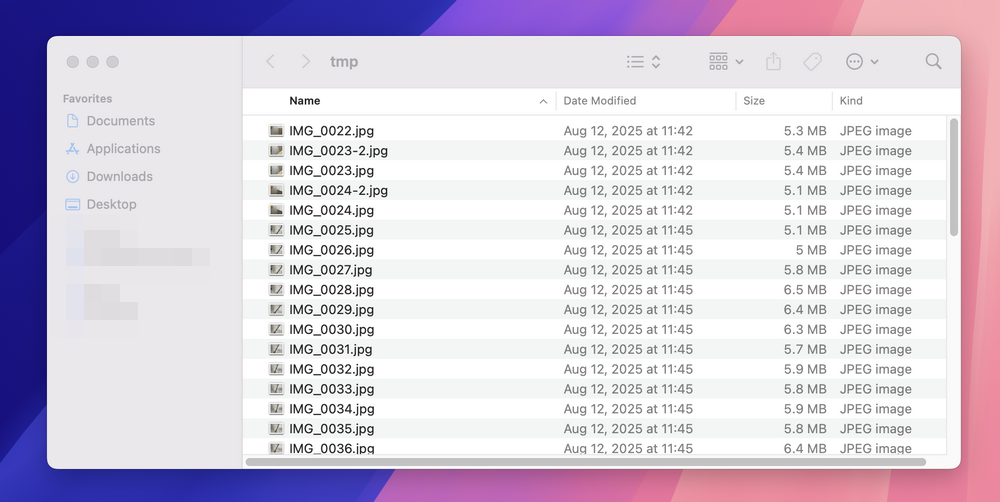
Once the conversion is finished, you can click the "Open Folder" option to view the converted JPG images.
Conclusion
You shouldn't face any compatibility issues with the converted images, and you can test this out by sending the files to any device running a different operating system, such as an Android tablet, a Windows laptop or an Mac.