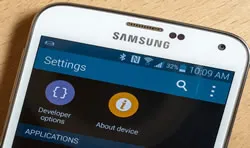

Honestly, there are several benefits to delete text messages on your Android phone. First, it can help you clean up storage space on your device. Additionally, it can help you keep the messages organized and tidy on Android phone. What is more, deleting old or unnecessary text messages can help you protect your privacy.
Where Are Deleted Text Messages Stored on Android
When you delete a text message from your Android phone, it doesn’t immediately remove the message from the device. Instead, it marks the message as "deleted" and moves it to a hidden folder called the "trash." The message is still stored on your phone, but it’s hidden from view.
Can I Recover Deleted Text Messages on Android?
It is highly possible to recover deleted text messages on Android if the storage space used by the message is not overwritten. That’s why you need to a safe way to permanently delete sms from Android phone by using a dedicated Android data erasing app.
How to Permanently Delete Text Messages from Android Phone
But if you were selling your old Android device to buy a new one then you must erase the messages permanently from your phone. A simple deletion is never safe because it has loopholes and any hacker or computer skilled programmer can restore your messages to use it against you.
That's why we are going to use TunesBro DroidWiper, which is a reliable and effective Android content erasing tool to permanently delete information from your Android device. It is a wonderful program to keep your phone organized by erasing selective data types from your phone according to your requirement. It has endless potential features and uses really very strong algorithms to erase data from your phone so that no data recovery tool can restore them back under any condition.
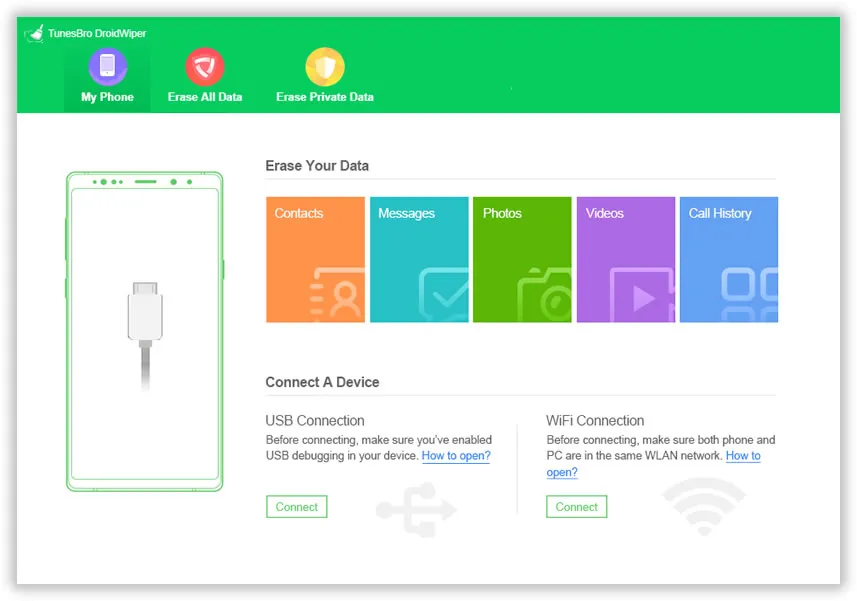
Step 1Download and Open TunesBro DroidWiper on PC
Like any other desktop software, you will need to install the program on your computer and launch it to see the user interface of this tool for the first time.
Step 2Connect Android and Turn on USB Debugging
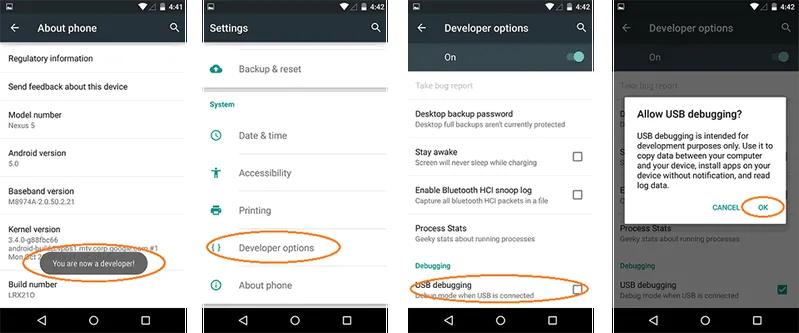
Connect your Android phone to PC and make sure that USB Debugging mode is turned on. If not, then follow this path on your Android to enable USB Debugging: Menu > Settings > Developer options > USB Debugging. If this still not fixing the issue, then you have to manually install Android USB driver for the phone.
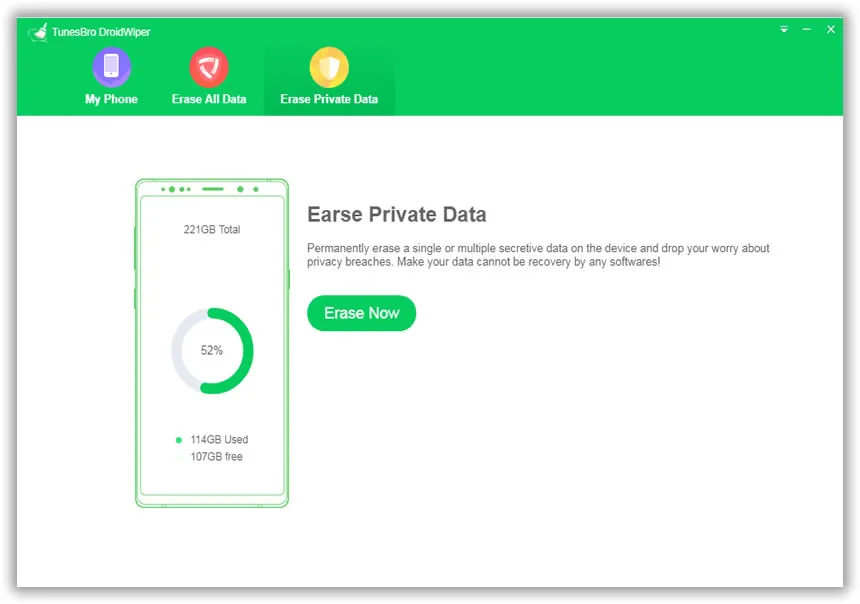
Step 3Select "Erase Private Data"
Your phone will be successfully detected by DroidWiper and it will show all the necessary information about your Android phone on the home screen.
Click on "Erase Private Data" to scan the existing files on your Android. It may take few minutes to completely scanning process and after it is finished, you will be able to preview all the data from your phone in a well-categorized manner.
Step 4 Erase Selected or All Messages from Android Phone
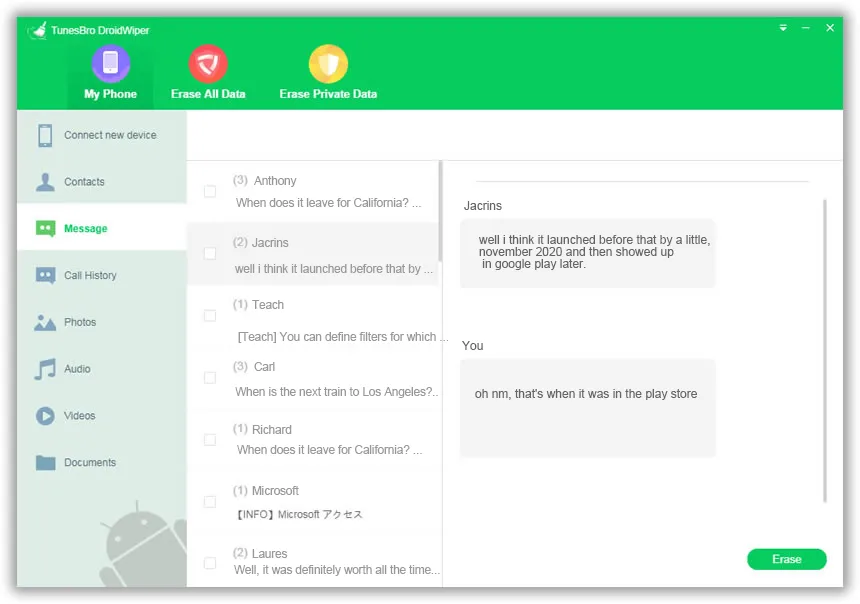
Choose the "Messages" folder from the sidebar to see all the texts from your phone. Select them all and hit the "Erase" button to delete them. The process is permanet so you can't recover any of them after that. Make sure you already backed up the messages before erasing.
Our Verdict:
Maintaining the security and privacy of your identification should one of the top most priorities. Hackers are taking every single chance to expose your information and use it for their advantage. Thanks to TunesBro DroidWiper, no hacker has the potential to get back the data from your Android phone ever again. There's no way to recover any data from your device after they are removed with DroidWiper.